Video
We have produced a video tutorial on connecting the NexDroid system to ROS.
NexDroid + ROS: Connection and Usage
1. Initializing the ROS Environment
Installing the ROS System
This section covers the complete installation steps and how to resolve any errors that may occur.
1. Configure sources.list
Configure the computer to install software from packages.ros.org.
sudo sh -c 'echo "deb http://packages.ros.org/ros/ubuntu $(lsb_release -sc) main" > /etc/apt/sources.list.d/ros-latest.list'
If the download is too slow, configure the Tsinghua mirror:
sudo sh -c '. /etc/lsb-release && echo "deb http://mirrors.tuna.tsinghua.edu.cn/ros/ubuntu/ `lsb_release -cs` main" > /etc/apt/sources.list.d/ros-latest.list'
Note: if the download fails, try configuring Alibaba Cloud, Tsinghua, or other mirrors for Ubuntu. An Alibaba Cloud mirror configuration is provided below.
-
Back up the source list
The default sources configured for
Ubuntuare not hosted on servers in China, so downloading and updating software is slow. First, back up the source list filesources.listsudo cp /etc/apt/sources.list /etc/apt/sources.list_backup -
Open the
sources.listfile to modify itsudo gedit /etc/apt/sources.listEdit the
/etc/apt/sources.listfile and add the Alibaba Cloud mirror at the top:deb http://mirrors.aliyun.com/ubuntu/ bionic main restricted universe multiverse deb http://mirrors.aliyun.com/ubuntu/ bionic-security main restricted universe multiverse deb http://mirrors.aliyun.com/ubuntu/ bionic-updates main restricted universe multiverse deb http://mirrors.aliyun.com/ubuntu/ bionic-proposed main restricted universe multiverse deb http://mirrors.aliyun.com/ubuntu/ bionic-backports main restricted universe multiverse deb-src http://mirrors.aliyun.com/ubuntu/ bionic main restricted universe multiverse deb-src http://mirrors.aliyun.com/ubuntu/ bionic-security main restricted universe multiverse deb-src http://mirrors.aliyun.com/ubuntu/ bionic-updates main restricted universe multiverse deb-src http://mirrors.aliyun.com/ubuntu/ bionic-proposed main restricted universe multiverse deb-src http://mirrors.aliyun.com/ubuntu/ bionic-backports main restricted universe multiverse -
Refresh the package list
sudo apt-get update
sudo apt-get upgrade
sudo apt-get install build-essential
2. Set Up the GPG Key
sudo apt-key adv --keyserver 'hkp://keyserver.ubuntu.com:80' --recv-key C1CF6E31E6BADE8868B172B4F42ED6FBAB17C654
3. Install
sudo apt update
sudo apt install ros-melodic-desktop-full
4. Initialize rosdep
If initialization fails, follow the fixes in step 6; after initialization completes, proceed to configure the environment variables.
sudo rosdep init
rosdep update
5. Set Environment Variables
echo "source /opt/ros/melodic/setup.bash" >> ~/.bashrc
source ~/.bashrc
6. Fixing rosdep Errors
Due to server issues, you may encounter the following problems, which require modifying the configuration files:
sudo rosdep init
ERROR: cannot download default sources list from:
https://raw.githubusercontent.com/ros/rosdistro/master/rosdep/sources.list.d/20-default.list
Website may be down.
rosdep update
reading in sources list data from /etc/ros/rosdep/sources.list.d
ERROR: error loading sources list:
('The read operation timed out')
- Open the file containing the resource-download function:
sudo gedit /usr/lib/python2.7/dist-packages/rosdep2/sources_list.py
Add
url="https://ghproxy.com/"+url

-
Modify the
DEFAULT_INDEX_URLin the/usr/lib/python2.7/dist-packages/rosdistro/__init__.pyfilesudo gedit /usr/lib/python2.7/dist-packages/rosdistro/__init__.pyDEFAULT_INDEX_URL = 'https://ghproxy.com/https://raw.githubusercontent.com/ros/rosdistro/master/index-v4.yaml'
-
Modify the addresses in the other four files by prepending
https://ghproxy.com/tohttps://raw.githubusercontent.com/$ sudo gedit /usr/lib/python2.7/dist-packages/rosdep2/gbpdistro_support.py //modify the address on line 36 $ sudo gedit /usr/lib/python2.7/dist-packages/rosdep2/sources_list.py //go to line 72 $ sudo gedit /usr/lib/python2.7/dist-packages/rosdep2/rep3.py //modify line 39 $ sudo gedit /usr/lib/python2.7/dist-packages/rosdistro/manifest_provider/github.py //modify lines 68 and 119 -
Fix the "Hit" error on the fifth address
sudo gedit /usr/lib/python2.7/dist-packages/rosdep2/gbpdistro_support.py //Add the following code on line 204 (i.e., the first line of that function block) gbpdistro_url = "https://ghproxy.com/" + gbpdistro_url //Note: the double quotes around the proxy address in the original URL are Chinese quotes; copy-pasting them directly will cause a character-recognition error -
If the "Hit" error on the fifth address still persists, modify
sudo gedit /etc/resolv.confComment out the existing nameserver line and add the following two lines:
nameserver 8.8.8.8 #Google DNS server
nameserver 8.8.4.4 #Google DNS server
Save and exit, then run
sudo apt-get updateThen run
sudo rosdep init
ERROR: default sources list file already exists:
/etc/ros/rosdep/sources.list.d/20-default.list
Please delete if you wish to re-initialize
Solution:
Run the following command to delete the existing initialization file:
sudo rm /etc/ros/rosdep/sources.list.d/20-default.listThen run again
sudo rosdep init
Installing ROS Packages
sudo apt-get install ros-melodic-moveit
sudo apt-get install ros-melodic-joint-state-publisher
sudo apt-get install ros-melodic-robot-state-publisher
sudo apt install ros-melodic-gazebo-ros-pkgs
sudo apt-get install ros-melodic-gazebo-ros-control
sudo apt-get install  ros-melodic-joint-trajectory-controller
Creating a ROS Workspace
mkdir -p ~/inexbot/src
cd ~/inexbot/src
catkin_init_workspace
cd ../
catkin_make
Modify the ~/.bashrc file
gedit ~/.bashrc
Add the following at the end of the file:
source ~/inexbot/devel/setup.bash
Copy all iNexBot packages into the inexbot/src directory.
2. Configuring MoveIt and the Robot
Before connecting, align the rotation directions, joint angle limits, and maximum joint velocity and acceleration of each axis between ROS and the robot so that they match.
The robot can be configured on the settings screen of the teach pendant.
In ROS, modify the parameters under the axis and limit tags for each joint in the xacro file so that the model's rotation directions and limits match the robot's. Modify max_velocity and max_acceleration in qj_config/config/joint_limits to change the maximum joint velocity and acceleration of the ROS model.
If the rotation directions, joint angle limits, or maximum joint velocity and acceleration are inconsistent, the teach pendant will report angle limit exceeded and servo alarm errors during operation.
......
<joint
name="robot_joint2"		<!--joint name-->
type="revolute">
<origin
  xyz="0 0.18 -0.0525"
  rpy="0 0 0" />
<parent
  link="robot_Link1" />
<child
  link="robot_Link2" />
<axis
  xyz="1 0 0" />    <!--1 for positive direction, -1 for negative-->
<limit
  lower="-3.14"
  upper="3.14"
  effort="100"
  velocity="1" />  <!--lower is the lower joint angle limit, upper is the upper limit; ROS uses radians while the teach pendant uses degrees-->
<dynamics damping="0" friction="1"/>
  </joint>
......
joint_limits:
   robot_joint1:
has_velocity_limits: true
max_velocity: 1
has_acceleration_limits: ture
max_acceleration: 1
<!--max_velocity is the maximum joint velocity, max_acceleration is the maximum joint acceleration, in radians-->
......
3. ROS–Controller Communication
Using a six-axis robot as an example, this section describes how ROS connects to the NRC robot controller.
1. Start the Controller
2. Start the Rviz and Gazebo Co-Simulation Environment
roslaunch inexbot_qj robot_bringup.launch
3. Add the Robot Model
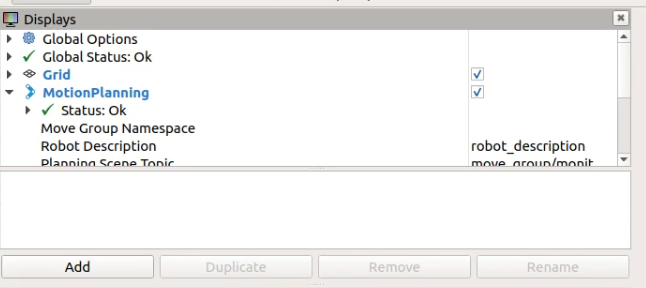
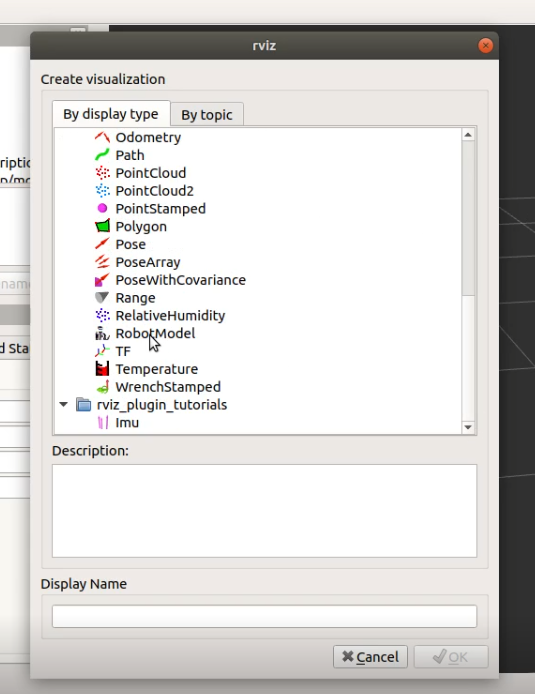
Click Add in the bottom-right corner of the Displays panel, then select Robot Model to add the robot model.
4. Start the ROS Node and Connect to the Controller
rosrun inexbot_service rostopic_joint5
4. Controlling the Robot with MoveIt
1. Goal State Control
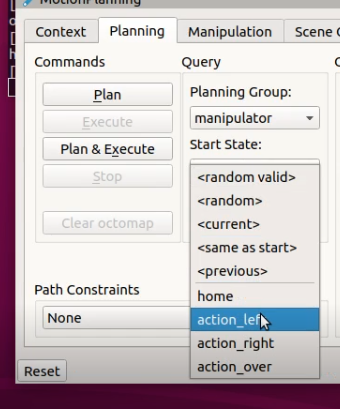
Click Plan to generate a planned trajectory; the computation time is displayed at the bottom as Time.
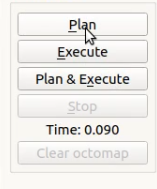
Click Execute to run the trajectory, or click Plan & Execute to plan and run immediately.
2. Drag the Planner Control
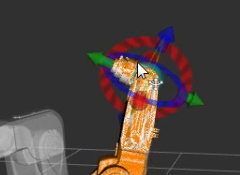
Drag the green ball at the front of the planner. When the cursor is placed on the ball, a 3D coordinate frame appears below it. Drag the ball to the target point, click Plan to generate a planned trajectory, then click Execute to run it; you can also click Plan & Execute to plan and run immediately.
5. Controlling the Robot with C++ Programming
1. Create a ROS Package to Store the Program Files
cd ~/inexbot/src
catkin_create_pkg inexbot_code std_msgs rospy roscpp
cd ../
catkin_make
2. Joint-Space Planning
Create moveit_joint_demo.c
Place the file under ~/inexbot/src/inexbot_code/src.
//moveit_joint_demo.c
#include <ros/ros.h>
#include <moveit/move_group_interface/move_group_interface.h>

int main(int argc, char **argv)
{
//ROS initialization
ros::init(argc, argv, "moveit_joint_demo");
ros::AsyncSpinner spinner(1);
spinner.start();

//manipulator is the planning group configured in MoveIt
moveit::planning_interface::MoveGroupInterface arm("manipulator");

//allowed error tolerance
arm.setGoalJointTolerance(0.001);
//maximum acceleration
arm.setMaxAccelerationScalingFactor(0.2);
//maximum velocity
arm.setMaxVelocityScalingFactor(0.2);

// Set the goal state to first return the arm to its home position
//home is the preset position in MoveIt
arm.setNamedTarget("home");
//run
arm.move();
sleep(1);
//Set the angles of the six joints in joint space
double targetPose[6] = {0.391410, -0.676384, -0.376217, 0.0, 1.052834, 0.454125};
std::vector<double> joint_group_positions(6);
joint_group_positions[0] = targetPose[0];
joint_group_positions[1] = targetPose[1];
joint_group_positions[2] = targetPose[2];
joint_group_positions[3] = targetPose[3];
joint_group_positions[4] = targetPose[4];
joint_group_positions[5] = targetPose[5];

arm.setJointValueTarget(joint_group_positions);
arm.move();
sleep(1);

// Return the arm to its home position
arm.setNamedTarget("home");
arm.move();
sleep(1);

ros::shutdown();

return 0;
}
Modify the CMakeLists.txt File
Add the following above the install section:
add_executable(moveit_joint_demo src/moveit_joint_demo.cpp)
target_link_libraries(moveit_joint_demo ${catkin_LIBRARIES})
#############
## Install ##
#############
Compile the Code
cd ~/inexbot
catkin_make
Run
rosrun inexbot_code moveit_joint_demo