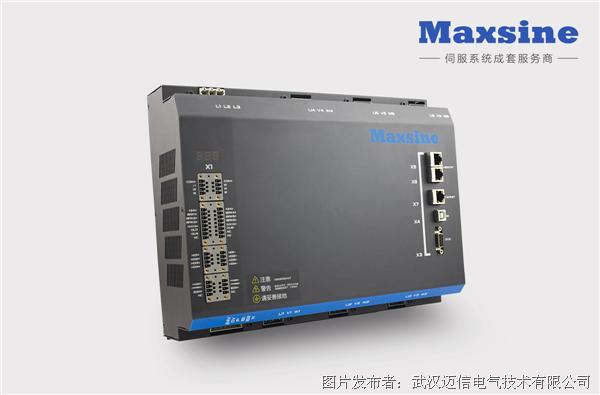
Abstract: The EPR6-S is a new-generation industrial robot servo drive launched by Wuhan Maxsine Electric Co., Ltd. based on the previous-generation EPR6. Its brand-new six-axis single-command control mode and six-axis single EtherCAT station mode (single-station multi-axis mode) greatly improve system stability and achieve industry-leading axis synchronization.
1. What Is Single-Station Multi-Axis
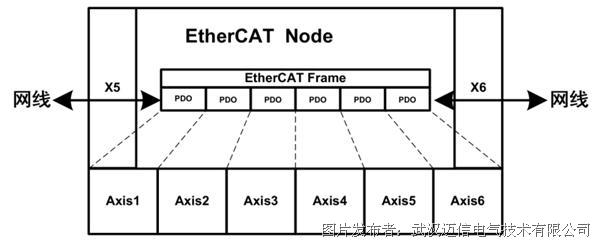
Single-station multi-axis means that one EtherCAT station sends and receives communication commands to and from six axes synchronously.
Traditional servo drives in industrial robot systems use one drive per motor, with each drive corresponding to one EtherCAT station. This mode has complicated wiring, low stability, and no improvement in axis synchronization. Modular multi-in-one drives also use a serial architecture for EtherCAT communication: six sub-drive boards are connected internally via network cables, with each sub-board except the communication board or main control board being one EtherCAT station.
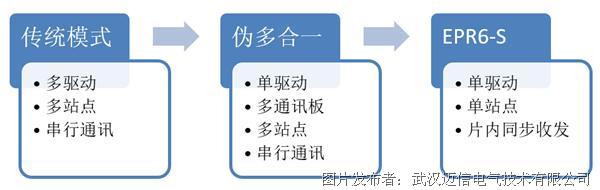
▲ Development of domestic robot servo drives
2. Advantages of Single-Station Multi-Axis Devices

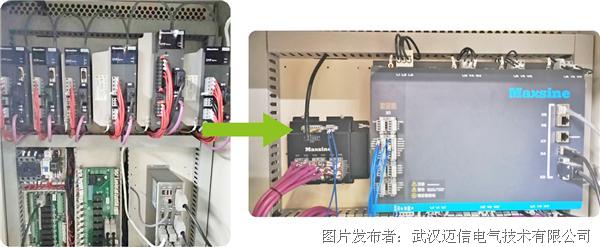
Compared with a traditional control cabinet, a control cabinet equipped with the EPR6-S requires only one servo drive — wiring is simple, and the entire system has just one pair of EtherCAT stations.
3. How the EPR6-S Achieves Single-Station Multi-Axis

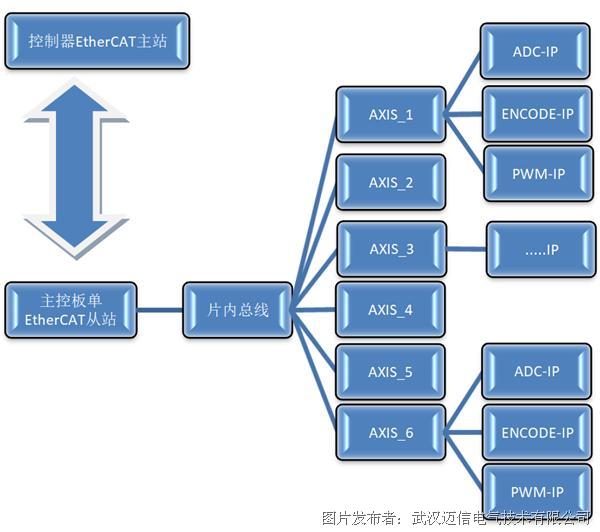
PDO data allocation for single-station multi-axis
Controller manufacturers compatible with the EPR6-S
4. EPR6-S XML File Sharing
Click "Read original" below to download the Maxsine_EPR6-S_XML file (only supported on the WeChat PC client), or log in to the Maxsine official website download center to download this file (URL: http://www.maxsine.com/download/technology). Match the corresponding data frame communication according to the XML.
5. Guide to Upgrading Robot Controllers to the Single-Station Multi-Axis Solution
Mainstream controller manufacturers including iNexBot have provided dedicated upgrade packages for the EPR6-S single-station multi-axis solution. Please consult your sales representative or download from the Maxsine official website download center.
Compatibility with the iNexBot robot controller
iNexBot robot controller teach pendant software upgrade
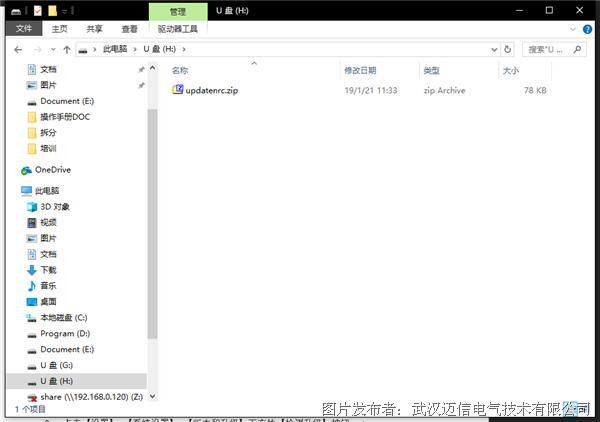
- Put the upgrade file (.zip format, no need to unzip; file names must not contain special characters such as parentheses) in the root directory of a USB drive (the USB drive must be FAT32 formatted), and insert the USB drive into the teach pendant's USB port.
- Click the 【Check for Updates】button under 【Settings】-【System Settings】-【Version and Upgrade】.
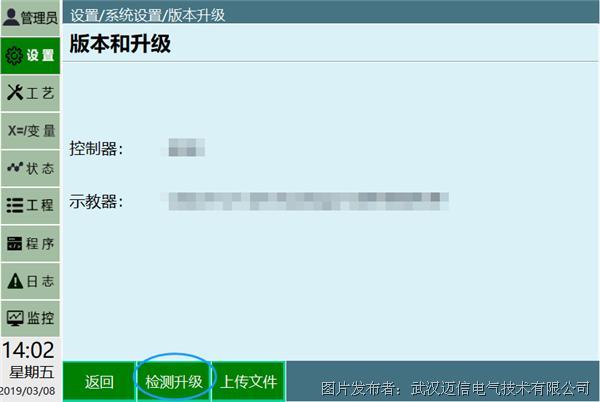
- Select the automatically detected upgrade file from the list.
- Click the 【OK】button.
- After the upgrade succeeds, the teach pendant will restart automatically; the upgrade is complete after the restart.
Uploading files
Download the latest EPR6 iNexBot firmware. To upload files such as the ENI file to the controller, follow these steps:
- Prepare a computer and a USB drive;
- Create a new folder named upgrade in the USB drive;
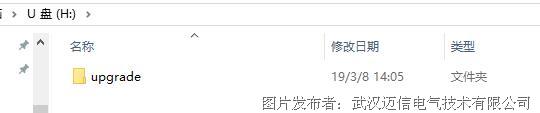
- Put the files to be uploaded into the upgrade folder;

- Insert the USB drive into the teach pendant's USB port;
- Open the Settings - System Settings - Version Upgrade interface;
- Click the Upload File button;
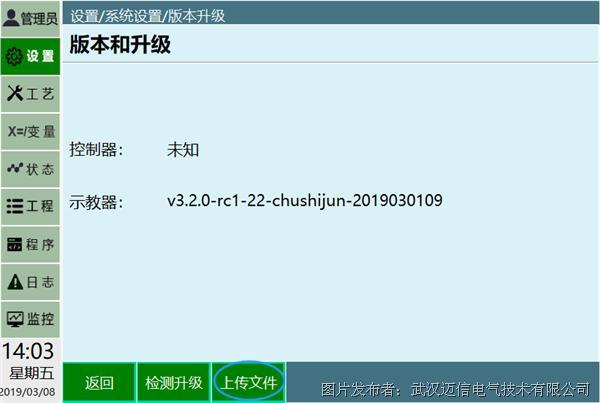
- In the pop-up list of detected files, select the file to upload and click the OK button.

Source: gongkong.com